GitHub: mitz17/ANSYS_Version_Selector
This tool is published on GitHub.
This is an unofficial tool created by an individual and is not affiliated with Ansys or its official support.
Why I made it
My PC has multiple versions of Ansys software installed, including Fluent, SpaceClaim, and Workbench.
Ansys software is commonly described as having backward compatibility but no forward compatibility. Newer versions can read older files, but files saved by newer software cannot be opened with older versions. Therefore, you need to be very careful when opening or overwriting Ansys files.
However, using only Ansys and standard Windows features, it is difficult to choose which version should open a file. Even when another executable is selected through “Open with,” the file may still be opened by the default version.

Figure 1. Windows app selection dialog
I created this tool so that users can explicitly choose which version to use each time they open a Fluent, SpaceClaim, or Workbench file.
How to use the tool
- Download the latest set of executable files from the GitHub Releases page, or build the executables from the source code.
- Save the files somewhere convenient, such as
C:\CombinedAnsysLauncher. - Associate the relevant Ansys file extensions with
FluentVersionSelector.exe,SpaceClaimVersionSelector.exe, orWorkbenchVersionSelector.exein Windows. - Double-click an Ansys file.
- Confirm that the file you want to open is displayed in the GUI.
- The tool automatically detects the installed versions. Select the version you want and click the launch button.

Figure 2. SpaceClaim version selector

Figure 3. Workbench version selector
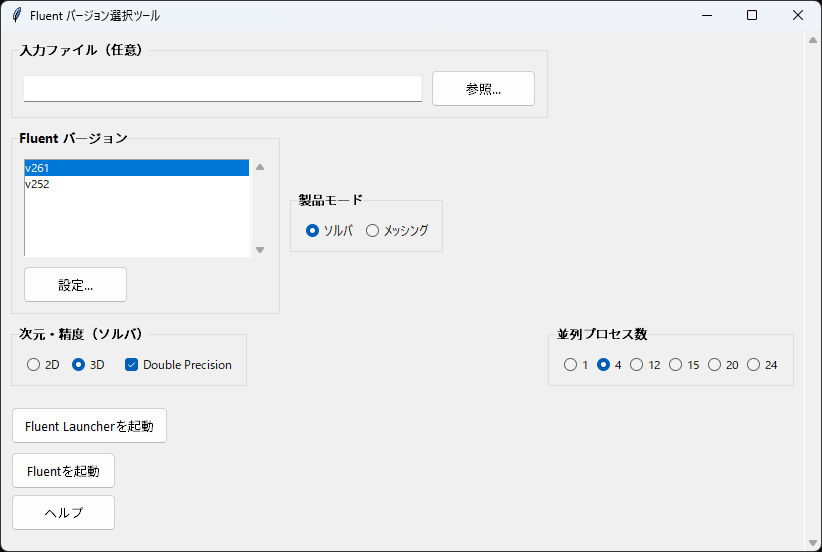
Fluent only
- Solver / meshing mode switching
- 2D / 3D selection
- Double precision
- Number of parallel processes
The tool also provides a “Launch Fluent Launcher” button.

Figure 4. Fluent version selector
The UI improvement was performed with the help of AI, using the UI design and animation guidance from emilkowalski/skills as a reference.
Manually detecting a version
When Ansys is installed under C:\Program Files\ANSYS Inc, the versions are detected automatically. If it is installed elsewhere, you can add a version manually by entering the version name and executable path from the settings dialog.
The order can also be changed with the Up and Down buttons.
When you close the settings dialog, the configuration is saved in a version information JSON file in the folder containing the executable.
For example, Fluent may save the following configuration:
{
  "versions": {
    "v252": "C:\\Program Files\\ANSYS Inc\\v252\\fluent\\ntbin\\win64\\fluent.exe"
  }
}

Figure 5. Version settings dialog
Code overview
The code is broadly divided into the following four parts.
ANSYS_Version_Selector/
├─ Fluent_Launcher.py        # Fluent detection, configuration, and launch
├─ SpaceClaim_Launcher.py    # SpaceClaim detection and launch
├─ Workbench_Launcher.py     # Workbench detection and launch
├─ launcher_common.py        # Shared configuration and file-selection logic
├─ webui/                    # Files that make up the application UI
│  ├─ app.html               # UI components and layout
│  ├─ app.css                # UI styling
│  └─ app.js                 # Button operations and Python integration
├─ build_all_exe.ps1         # Script for building executables
├─ README.md                 # Tool documentation
└─ Various icons             # Icons used by the executables and UI
Searching for Ansys installations
The find_fluent_exes() function checks directories such as:
C:\Program Files\ANSYS Inc
C:\Program Files\Ansys Inc
It searches version directories such as v252 and v241 for executables such as:
v252\fluent\ntbin\win64\fluent.exe
When an executable is found, the path is stored in a dictionary and saved as JSON.
Launching SpaceClaim and Workbench
SpaceClaim and Workbench are launched with subprocess.Popen() by combining the executable path with the target file path.
cmd = [exe]

# SpaceClaim receives the file path directly.
SpaceClaim.exe "D:\cad\sample.scdoc"

# Workbench receives the project file with the -F option.
RunWB2.exe -F "D:\project\sample.wbpj"

subprocess.Popen(cmd)
Launching Fluent
Fluent requires a temporary journal file to be created and loaded during startup.
For example, a 3D, double-precision, four-process launch looks approximately like this:
fluent.exe 3ddp -t4 -i temporary.jou
The journal contents depend on the input file type. For example, .msh files use read-mesh, .cas files use read-case, and .dat files may require the corresponding .cas file to be loaded first.
The temporary .jou file is not deleted immediately because deleting it too early could cause a failure depending on Fluent’s loading timing. Instead, launcher-generated journals older than 48 hours are cleaned up at the next launch.
Conclusion
Managing the launch version is now much easier. I hope this tool helps improve your workflow.
Related articles
- Automatically resolving ChromeDriver and Chrome version mismatch errors
- Switching an Easy-Switch mouse between Ubuntu and Windows
Ansys, Ansys Fluent, Ansys SpaceClaim, and Ansys Workbench are trademarks or registered trademarks of Ansys, Inc. or its affiliates. This article is an unofficial third-party introduction.